Groups & Events
Groups in SEEKERS (also called "channels") are the place where you collaborate with other users. Inside a group you can chat, share routes, tracks and places, run competitions on your routes and publish the group on your public profile.
A group works as a shared event space: members receive access to the routes and places shared in the group, admins can enable a competition mode for a route, and every run result is linked to the group so members can be compared inside the same event context.
Quick links:
Creating a Group
A group can be created from the Create Chat / New Message screen. When you open this screen you see a list of existing chats and users. Below the list (or when you have not started typing) three options are available to start something new:
- Create new group: opens the group editor for a fresh, empty group.
- Send an invite: create a group and directly invite a user by e-mail.
- Copy link: visible only when sharing a geo asset (route / track / place); copies a shareable link to the clipboard.
Steps to Create a New Group
- Open the app and go to Create chat / New message.
- Tap Create new group.
- In the group editor, set a Name for the group.
- Choose Who can join this group?
- Everyone (public): the group will be shown on your profile and anyone can join.
- Private: only invited members can see and join the group.
- Optional: enable Broadcast channel if you want a one-to-many channel where only the creator can post messages and add elements. Typical use case: events or community announcements.
- Optional: add an image for the group with Add Image.
- Tap Save.
Empty groups are rejected. If you try to leave the editor without a name and without any members, SEEKERS will ask whether you want to discard the group.
Adding Users to a Group
Members can only be managed by the creator of the group. Other members will see the member list but will not be able to add or remove users.
Add an Existing User
- Open the group and tap Edit to open the group editor.
- In the Members section, tap + Member.
- Search for the user by name or e-mail.
- Tap the user in the result list — they are added to the group.
Invite a User by E-mail
If the person is not yet registered in SEEKERS, you can send them an invite:
- In the Members section, tap + Member.
- Tap Send an invite.
- Enter the e-mail address of the person you want to invite.
- SEEKERS creates a pending user profile and adds that profile as a member of the group. The invitee receives an e-mail invite and joins the group once they sign up.
Removing a Member
As the creator, tap the × icon next to a member in the member list to remove them from the group.
Direct (one-to-one) chats are created automatically the first time you tap another user in the Create chat screen — you do not need to create a group for a private conversation.
Ranking and Competition Modes
For every Route you share into a group you can enable a competition mode. Each time a member completes the route, their run result is stored in the group. The group then offers a ranking screen that lists all members per route.
Enabling a Competition Mode
- Open the group editor and add a route to Elements.
- Below the route you will see Select a competition option for this route.
- Choose one of the options listed below.
Available Competition Modes
| Mode | What is measured | Ranking is sorted by |
|---|---|---|
| No competition | Nothing. | No ranking is shown for this route. |
| Navigation Challenge (points) | Points are awarded / deducted based on how correctly waypoints of the roadbook are validated. Standard waypoints (WPM) count 15 points, navigation waypoints 60 points, precise waypoints 2 points. | Lowest point total first. Members who did not finish (DNF) are listed last. |
| Precise Navigation Challenge (distance) | The deviation (penalty) between the driven track and the ideal route is accumulated over the whole stage. | Lowest penalty first. DNF last. |
| Time Trial (best time) | The overall time between start and finish, minus neutralisations, plus any time penalties. | Fastest time first. DNS / DNF are annotated on the row. |
Time trial disclaimer. Time trials are only allowed on closed / controlled environments. When you enable this mode you have to accept the safety disclaimer explicitly — you are acting as the organiser of the event.
The full scoring logic for each mode is described on the Competition Modes page.
Viewing the Ranking
- Open the group.
- Tap Ranking (the trophy / ranking action of the group).
- For every route in the group a separate table is shown, including position, name of the member and the score (time, points or distance).
- Tap the info icon next to a result to drill down into the Result details — individual waypoints, penalties, neutralisations and the full timeline of that run.
Adapting Results
SEEKERS calculates the penalties of a run automatically. As the organiser you have the last word: a waypoint that could not be validated because of a GPS problem, a time penalty decided by the race direction or a bonus for helping another rider — you can adapt the penalties of every result in your group.
- Open the group, tap Ranking and open the Result details of the run via the info icon.
- Tap the edit (pencil) icon in the top bar. It is only shown to the creator of the group.
- The Edit Penalties list shows all penalties of this result. For every penalty you can:
- Edit it — change its type, value or description.
- Delete it — the penalty no longer counts, but stays in the list crossed out.
- Restore it — undo your changes and bring back the penalty as SEEKERS calculated it.
- Tap Add Penalty to add a penalty of your own. Choose a Type, enter the Value and a Description that tells the rider why.
- Tap the done (check mark) icon to finish. Your changes are synchronized and the ranking is updated for every member of the group.
- Value: in seconds for a Time Trial, in points for the Navigation Challenge and the Precise Navigation Challenge.
- Bonus: a penalty of the type bonus counts negative — it reduces the points or is subtracted from the overall time.
- Traceable: every adapted penalty is marked as Edited, Added or Removed together with the time of the change, so you always know which values were set by hand.
Comparing Rides on the Map
The ranking tells you who was fastest — the stage overview shows you why. It puts the ranking of a single route next to a map, and draws the traveled tracks of the riders you select on top of each other, each in its own color. That way you can see where a rider took a shortcut, missed a waypoint or lost time searching for the right track.
Opening the Stage Overview
- Open the group and tap Ranking.
- Tap the name of a route, or Open details next to it.
- The stage overview opens with the ranking of that route and a map. On a wide screen (tablet, SEEKERS Studio) the map is shown next to the ranking, on a phone it is stacked on top of it.
Selecting Rides to Compare
- Tap a row to show only the track of that rider. Tap it again to hide it.
- Tick the checkbox of a row to add its track to the map. Tick as many riders as you want to compare them side by side.
- The colored bar next to the checkbox shows the color of the track on the map. A rider keeps their color while you change the selection.
- Every selected rider shows a short summary below their row: start time, duration, penalty, validated waypoints and neutralisations — so you can compare the numbers without leaving the screen.
- Tap the info icon of a row to open the full Result details of that run.
Inspecting Points on the Map
- Tap a waypoint of the route to see, for every selected rider, whether and when they validated it.
- Tap a track point to see the time, speed, position accuracy and whether the rider was on the route at that point.
Roadbook vs. Map Navigation
A ride navigated on the map is not comparable to one navigated by the roadbook — the map shows the way the roadbook makes you find. When a route was ridden in both ways, SEEKERS ranks them separately: the ranking lists Roadbook navigation and Map navigation in their own tables, and the stage overview lets you switch between them. Only rides of the same navigation mode are compared with each other.
Your own rides of a route are listed under Results of the route, grouped the same way.
Live TrackingWith live tracking enabled, every member running a route of the group reports their current position and the waypoints validated so far while the run is still going on. As an organiser you see where your riders currently are — and when everybody is back at the finish — instead of learning about a run only once its result is uploaded. | 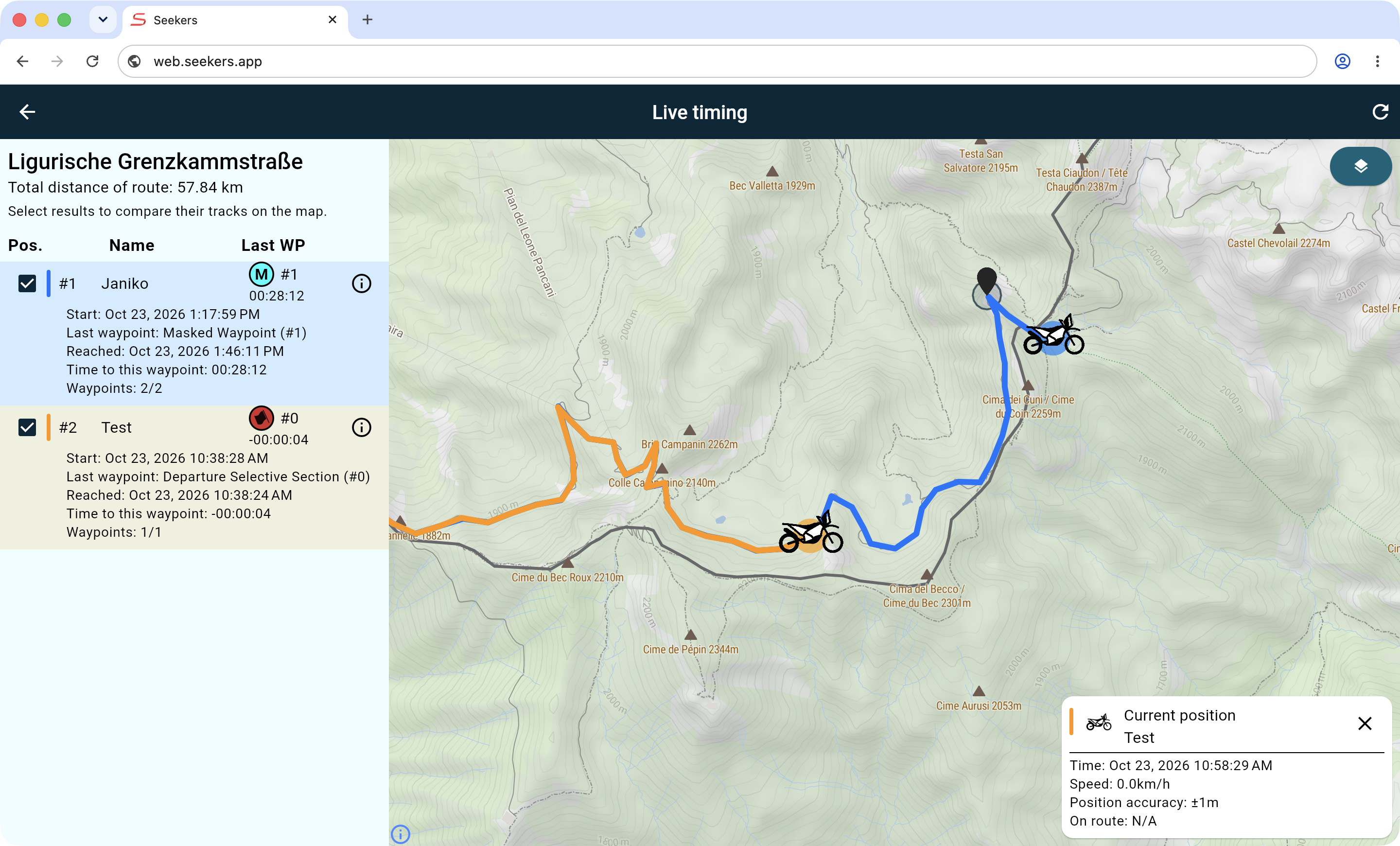 |
Live Tracking
With live tracking enabled, every member running a route of the group reports their current position and the waypoints validated so far while the run is still going on. As an organiser you see where your riders currently are — and when everybody is back at the finish — instead of learning about a run only once its result is uploaded.
Enabling Live Tracking for a Group
- Open the group and tap Edit.
- Turn on Enable Live-Tracking (Roadbook navigation only).
- Tap Save.
Only the creator of the group can turn live tracking on or off. Live tracking does not need a competition mode — a group that only wants to follow its riders can use it on its own.
What Riders Need to Know
- Live tracking works with roadbook navigation. When a rider starts a route of the group, the run is reported live automatically.
- Before the start, SEEKERS informs the rider that their position will be shared live with all members of the group. Sharing the run with a live tracking group cannot be opted out of — a rider who does not want to share their run has to leave the group.
- The rider's position is reported every 30 seconds by default. The interval can be changed in the navigation settings under Live Position Interval (10 s, 30 s, 1 min, 2 min, 5 min or Off).
- No reception? No problem. A report that cannot be sent is skipped silently and the next interval sends the position the rider has reached by then. A rider who did not move since the last report is reported as standing still.
Following the Riders
The live positions can be followed in SEEKERS Studio on your computer or in the mobile app — both open the same live board.
- Open the group.
- Tap Live tracking (or Live timing, if the group runs a competition).
- If the group has several routes, select the stage you want to follow. Each stage shows how many riders are on it right now.
- The live board lists every rider who is currently running, ordered by the last waypoint they reached and the time they needed to get there.
- Tap a rider to show their track and their last reported position on the map, or tick several riders to see them all at once — just like when comparing rides.
The live board refreshes itself every 30 seconds. Use the refresh button to update it right away.
Public Groups on the Profile Page
Every user has a public profile page reachable via <server>/profile/<username> (or /profile/<userId> when no username is set). The profile shows the user's avatar, name, description — and a section called Groups & Events.
The Groups & Events section automatically lists all groups with access level Everyone (public) that the user is a member of. Visitors can tap any card to open the corresponding group page and, if they want to, join it.
Publishing a Group on Your Profile
- Open the group and tap Edit.
- Under Who can join this group? choose Everyone (public).
- If the group contains private or protected elements, SEEKERS warns you that these elements will become visible to everyone who joins. Confirm to continue.
- Tap Save.
The group immediately appears in the Groups & Events section of the profiles of all its members.
Sharing Your Profile
- Open your profile.
- Tap the Share icon in the top right corner.
- Copy the profile URL to the clipboard and send it to whomever you want. They will see all of your public groups and events.
Set a username in your account settings to get a nicer-looking share URL (/profile/your-name instead of the raw user id).


© SEEKERS® by Janiko Naber